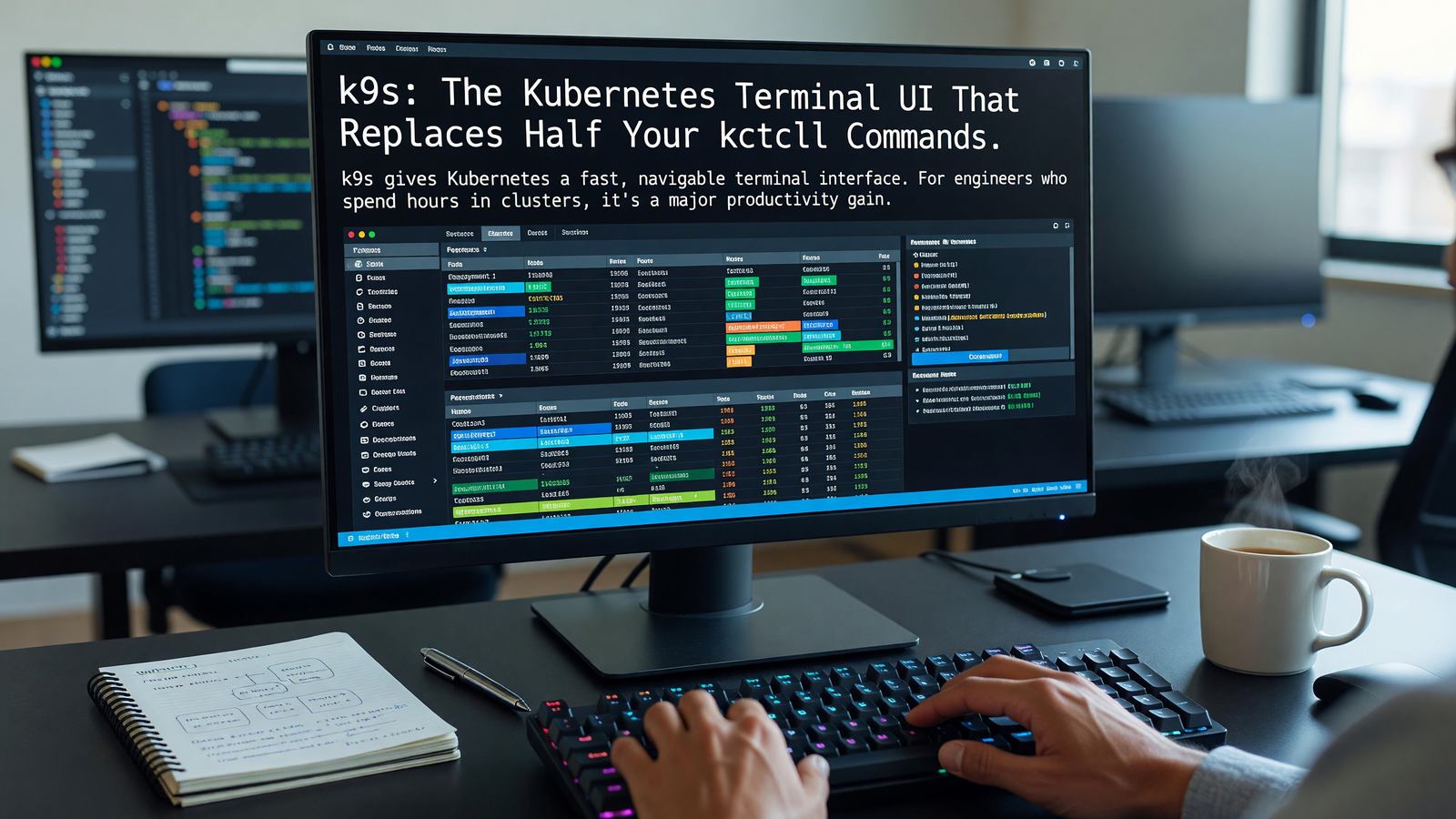
k9s: The Kubernetes Terminal UI That Replaces Half Your kubectl Commands
What k9s Does
k9s is a terminal-based UI for Kubernetes. It renders pods, deployments, services, and every other resource type in scrollable lists. Navigation is keyboard-driven; common operations — viewing logs, opening shells, describing resources, deleting — are single keystrokes.
The pitch is simple: most cluster interaction is browsing and inspection, not modification. k9s makes the browsing dramatically faster than kubectl by removing the typing.
The Core Workflow
Launch with k9s. Type :pods to list pods. Type the first few letters of a pod name to filter. Press ’l’ to see logs, ’s’ to shell in, ’d’ to describe, ’e’ to edit, ‘Ctrl-d’ to delete with confirmation.
Most operations are single keystrokes. The full key map is a 30-minute investment that pays back the first day.
Why It’s Better Than kubectl For Most Things
kubectl is the right tool for scripting, automation, and one-off precise operations. k9s is the right tool for the kind of cluster inspection that happens during incident response, capacity reviews, and feature development.
Context switching between namespaces is one keystroke. Tailing logs across multiple pods is built in. Cross-resource navigation — from a deployment to its pods, from a pod to its events, from a service to its endpoints — is fluid in a way kubectl never quite gets.
Useful Configuration
k9s reads ~/.config/k9s/config.yml for preferences: default namespace, refresh rate, color scheme. Skins are themable; the default is fine, the Catppuccin and Dracula community skins are popular.
Plugins extend functionality. The k9s plugin documentation covers the plugin format; the ecosystem includes plugins for kubectl-tree, helm release inspection, and kubeshark integration.
Alternatives Worth Knowing
Lens is a desktop GUI for Kubernetes. More features than k9s, but heavier and tied to a graphical environment.
kubectl with good aliases (k for kubectl, kgp for get pods, etc.) plus tools like kubectx, kubens, and kube-ps1 covers a lot of the same workflow without leaving the shell.
kdash and kubefwd target specific use cases — dashboard-style monitoring and local port forwarding respectively.
Related Reading
- See our deeper guide at /developer-tools/cli-tools-platform-engineers/.
Custom Views and Plugins
k9s supports custom views via the views.yaml config. Define a view as ‘show me all pods with this label, sorted this way’ and bind it to a keybinding. Useful for frequently-accessed views — your team’s critical pods, all pods in CrashLoopBackOff, all failed jobs.
Plugins extend k9s with custom actions. The plugin definition specifies a key, a target resource type, and a command to run. Common plugins: open a pod’s logs in less, exec into a debug container, port-forward to a specific pod port. The plugin ecosystem is small but the pattern is straightforward to extend.
Multi-Cluster Workflows
k9s uses your kubectl context, so switching clusters is the same as switching kubectl contexts. The :ctx command inside k9s changes context without exiting. Useful for engineers working across many clusters.
For teams with strict context discipline, kube-ps1 in the shell prompt and a habit of always checking the current context before running commands keeps you from running production commands on staging by accident.
Resource Tracking and Performance
k9s polls the Kubernetes API at a configurable interval (default 2 seconds) to refresh views. On large clusters with thousands of resources, this can be noticeable load on the API server.
Adjust the refresh rate for large clusters: 5-10 seconds is fine for most monitoring purposes. The :pulse view shows cluster health summary without per-resource polling overhead.
For very large clusters, kubectl with focused queries often outperforms k9s. Use the right tool — k9s for general exploration, kubectl for specific queries that don’t need a live view.
k9s in Production
For production cluster access, k9s benefits from the same access controls as kubectl. Read-only kubeconfigs prevent accidental deletion. RBAC limits what any user can do.
Some teams require ticket-tracked access to production. The pattern: cluster access is gated by a ticket, the access is granted as a time-bounded role binding, kubectl/k9s work for the duration of the ticket, access is revoked automatically.
Tools like Teleport, Boundary, and similar provide this workflow with audit logs. They work with k9s; the access management happens transparently.
Productivity and Developer Experience
Developer experience research consistently finds that small friction adds up. The minute spent every time you switch tasks because the tool is slow, the moment of confusion every time a command doesn’t work as expected — these compound across days and weeks.
The investment in good tooling pays back. Engineers with well-tuned environments routinely outperform engineers in default environments by meaningful margins, especially on tasks that involve switching context or doing repetitive actions.
Standardize where it helps (shared dotfiles, dev container baselines, agreed-on tool choices) and let individuals customize where it doesn’t (editor preferences, prompt designs, keyboard layouts). The right balance varies by team.
Adoption and Onboarding
New tools succeed or fail in onboarding. A tool with great long-term value but a steep initial curve gets abandoned before the value materializes. A tool with limited value but smooth onboarding becomes the default forever.
Successful tool adoption usually includes: an internal champion who’s already proficient, paired learning sessions for newcomers, and explicit time set aside for the learning curve.
Forcing adoption without these supports doesn’t work. Engineers who feel forced revert to familiar tools as soon as oversight ends. Voluntary adoption with good support generates lasting change.
Tool Evaluation Process
New developer tools arrive constantly. Without a process for evaluation, teams either adopt every shiny new thing or rigidly reject change. Both extremes hurt.
A working evaluation process: small pilot with one or two engineers, sharing of findings, broader trial if the pilot succeeds, decision point on team-wide adoption. The full cycle takes weeks to months depending on tool scope.
Document the why behind tool choices. The tools change; the reasoning often persists. Future evaluators benefit from understanding what was tried and what didn’t work.
Personal Setup and Sharing
Each engineer’s personal setup evolves over years. The best setups combine team-standard tools with personal customizations that match individual working styles.
Sharing setups within the team accelerates everyone. A monthly ‘show your setup’ session, internal blog posts on tooling discoveries, or pair-programming where engineers see each other’s environments all transfer tacit knowledge.
Dotfile repositories with documentation make this concrete. Teams that share their environments openly find that productivity gains spread organically across the group.
Building Your Setup Over Time
Developer tooling evolves continuously. The setup that worked two years ago has gaps now; the setup that’s perfect today will feel dated in two years. Treating personal tooling as an ongoing investment, not a one-time setup, yields the best long-term results.
Practical rhythm: review and update tooling every six months. Try one new tool each quarter. Document what works for your own future reference. The accumulated experimentation builds a setup that fits your actual workflows.
The community matters here too. Tool authors and power users share insights via blog posts, conference talks, and social media. Following a few voices in your tooling space surfaces ideas you’d otherwise miss.
Most importantly, optimize for your actual work, not for theoretical best practices. The tools that other engineers love may not fit your style; that’s fine. The goal is making your daily work flow better, not adopting trends.
The compounded effect of small tooling improvements over a career is significant. The investment now pays back for years to come.
Key Takeaways
The most important point throughout this guide: practical engineering decisions depend on specific context. Best-practice recommendations are starting points, not destinations. The right answer for your team depends on your scale, your existing tooling investment, your team’s experience, and the specific constraints you face.
Three principles worth carrying forward regardless of specific tool choices. First, measure what you change. Engineering improvements without measurement become folklore — claims without evidence. Track the metrics that show whether interventions are working.
Second, default to simpler architectures and tools. Complexity has cost. Each additional moving part is something to monitor, debug, upgrade, and eventually replace. Choose the simplest thing that meets your actual requirements, not the most sophisticated thing you could build.
Third, invest continuously in the boring foundations. Reliable CI, good observability, sensible access controls, and clear documentation pay back across every project. Skipping these for short-term feature velocity accumulates debt that eventually consumes the velocity it was supposed to enable.
The teams that operate well over the long term are usually not the teams with the most exotic tooling. They’re the teams with disciplined fundamentals, deliberate decision-making, and continuous incremental improvement.
Frequently Asked Questions
Does k9s work with all Kubernetes clusters?
Yes. It uses kubectl context, so anything you can reach with kubectl works with k9s.
Is it safe to run k9s against production?
It uses your existing kubectl permissions. If your account can’t delete resources, neither can k9s. Be cautious with the delete keystroke regardless.
Can I customize the keybindings?
Yes, in the config file. The defaults are good; most users don’t change them.
How does it compare to OpenLens or Headlamp?
OpenLens and Headlamp are graphical desktop clients. k9s is terminal-only and faster for engineers comfortable in the terminal.